Studio Display XDR Scrolling Stutter on the M5 Pro MacBook Pro: What's Going On, and a Workaround
Scrolling at 120Hz on the Studio Display XDR is choppy for some M5 Pro owners. Low GPU clock speeds appear to be part of the problem.
My Story:
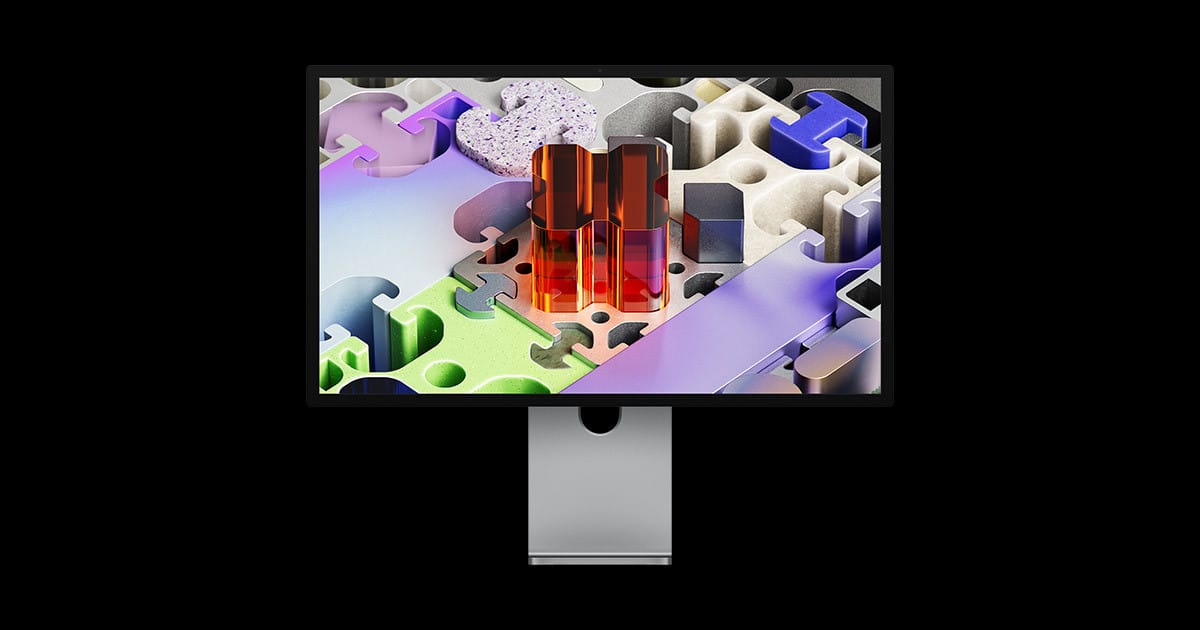
Earlier this year I picked up a Studio Display XDR, upgrading from the regular Studio Display, for use with my MacBook Pro with the M5 Pro chip.
Disappointment doesn’t adequately describe how I felt upon first using the display.
Let me qualify — my disappointment had nothing to do with the actual quality of monitor — the Studio Display XDR is a phenomenal piece of hardware (mini‑LED backlighting; 2,000 nits peak HDR brightness; 120Hz refresh rate and Adaptive Sync). But something immediately felt broken with the 120Hz refresh rate. Scrolling felt choppy and ‘stuttery’ across the whole system, especially when browsing the web. Dropping the display’s refresh rate to 60Hz fixed it, but that entirely defeats the point of a 120Hz display. [1]
I spent weeks trying to resolve the issue — long phone calls with Apple technical support got me nowhere. I made sure I was running the latest Studio Display XDR firmware; I tried Safe Mode; I reinstalled macOS from scratch (a full clean install), all to no avail. I couldn’t find anyone else experiencing the same issue and began to wonder if I was visually perceiving something other’s didn’t, even though 120Hz looks perfectly fine on my MacBook Pro's internal screen, on my iPad Pro and my iPhone 17 Pro.
Eventually, with real regret, I boxed the XDR back up, and returned the display.
A few months later I found a good deal on another Studio Display XDR and bought it, lulling myself into believing the issue would have been fixed. The new display exhibited the exact same problem, which made me suspect the MacBook itself might be to blame, although that seemed unlikely.
Over the next few weeks I began to notice the issue less, not because it had gone away, but because the brain tends to visually adjust and compensate. But I also noticed that scrolling appeared smoother when something GPU-heavy was running, such as a very large Ableton Live project.
Recently, a MacRumors forum member (Tiguanito) messaged me after seeing me mention the problem on a Studio Display XDR thread. He had started a separate thread describing the same behaviour on a 14-inch M5 Pro MacBook Pro with the 18-core CPU, 20-core GPU and 48GB of RAM (mine is the same configuration, but with 64GB RAM). His symptoms matched mine exactly: choppy scrolling at 120Hz or Adaptive mode, whether the MacBook lid was open, closed or in clamshell mode, with the trackpad or a mouse.
Tiguanito had done something I hadn’t: he'd tested the same display with a base M5 and an M5 Max MacBook Pro, and with both the display ran smooth. He had also reproduced the same problem on a second M5 Pro MacBook Pro.
It took a stranger's private message to tell me I wasn't imagining things, and an experimental app he built to fix the stutter.
In short:
- Symptom: scrolling is choppy on the Studio Display XDR at 120Hz or Adaptive (47–120Hz). At 60Hz, and on the MacBook's own screen, scrolling is smooth.
- What devices are affected: M5 Pro MacBook Pros have reproduced the problem; it’s not yet clear whether other Macs are affected. Apple lists M5 Pro MacBook Pro models as supporting the Studio Display XDR at 120Hz.
- Likely cause: measurements suggest the GPU stays at a low clock speed while scrolling and misses frame deadlines.
- Workaround: MacRumors Forums poster Tiguanito's M5ScrollBoost, a small menu bar app that encourages the GPU to run faster while you scroll. This is an experimental workaround, not a permanent fix.
- Apple: hasn’t publicly acknowledged the problem.
What the measurements show:
Tiguanito's investigations are by far the most useful evidence so far. He measured what his Mac was actually doing while he scrolled.
A 120Hz display refreshes every 8.3 milliseconds. While something on screen is moving, the Mac needs to produce a new frame in roughly that time. If a frame is late, the display can show the previous frame for another refresh, and you see that as a 'stutter'.
Using Apple's Instruments developer tool, Tiguanito recorded how long each frame stayed on screen. At 60Hz, about 98% were "healthy", meaning they stayed up for exactly one refresh. At 120Hz, only 70% were. Around 27% were repeated for a second refresh and about 3% for longer — so roughly 3 frames in 10 were late.
The GPU is responsible for rendering the graphics you see on screen. Like a car engine, it can run slowly to save power and heat, or run quickly when there's a lot to do, and macOS adjusts that automatically many times a second.
Using powermetrics, a built-in tool that reports what the chip is doing, Tiguanito found the GPU running at only about 338–393MHz while he scrolled at 5K and 120Hz, even with Energy Mode set to High Power. In Tiguanito’s testing, adding enough GPU work to keep the GPU at higher clock raised the proportion of healthy frames from about 70% to 98%, close to the 60Hz result.
Is it only the M5 Pro?
This isn’t settled.
- One user in the same MacRumors thread reports the same choppiness on an M5 Pro with a non-Apple 5K 165Hz monitor, so it may not be Studio Display XDR specific.
- On a different thread, an M5 Max owner (chuckcny) reports 120Hz on the Studio Display XDR feels less smooth than the built-in screen.
- One reader says a macOS 27 release candidate smoothed things on their monitor, while Tiguanito says it persists on macOS 27 (I’m running macOS 26.6.2, I haven’t tried macOS 27 and I have Studio Display XDR firmware Version 26.4.)
- It's possible, but untested as far as I know, that the M5 Pro Mac mini is also affected.
A likely explanation:
The best-supported explanation so far is that the M5 Pro's GPU stays at too low a clock speed to keep up with a 5K display at 120Hz. Apple hasn't commented, so treat this as an informed theory.
Apple silicon uses dynamic voltage and frequency scaling (DVFS). The system watches how busy the GPU is and raises or lowers its clock speed to match. Think of it as like a driver who eases off the accelerator whenever the road looks empty, to save fuel. Scrolling is a stop-start journey of tiny tasks. Each frame is light work, but at 120Hz the GPU has only 8.3 milliseconds to finish it and on the Studio Display XDR each frame is a 5k image of roughly 14.7 million pixels. If the GPU judges the load as light and stays at a low clock, some frames miss the deadline, and each miss is perceived as a visible ‘stutter’. According to this theory, the M5 Pro is too cautious. It saves power at exactly the moment you want it to hurry up.
If the theory is right, it explains why keeping the GPU busy helps, and suggests Apple could fix it in software by changing how quickly the GPU ramps up. Why other chips seem unaffected (if indeed they are) is speculation: perhaps the base M5 ramps sooner and the M5 Max has enough headroom, but the reports above show that it might not be so clear-cut.
The workaround: nudge the GPU to speed up!
If the GPU is slow because it thinks it has little to do, the workaround is to give it a little more to do. Tiguanito wrote a small app that does this, called M5ScrollBoost. (I tried building my own version, but honestly, his works far better.)
What it does. The app can't set the GPU's speed directly. Instead, it sends the GPU short bursts of ‘throwaway work’ through Metal, Apple's graphics framework, to encourage the system's power management to stop leaving it at its lowest speed. It works while you scroll on the external display, and adds a short tail of 0.9 seconds after you stop. It only switches on for an external display of at least 5000×2800 pixels running at 100Hz or faster, so it does nothing on the MacBook's own screen or at 60Hz.
The README says it doesn't make permanent system changes and that it has no administrator helper, daemon or kernel extension. It uses a global scroll-wheel monitor to know when you're scrolling, but says it doesn't modify or record scroll events. It also stresses that it's experimental, that results vary with the workload and system, and that it isn't an Apple-supported utility. I haven't audited the code, but the source is public, so you can read it before running it.
Note: Because you’re building and running third-party software from source, only follow these steps if you’re comfortable reviewing or trusting the code.
Requirements: The README lists an Apple silicon Mac, running macOS 26 or 27, connected to AC power, and a qualifying display (at least 5000×2800 at 100Hz or more). It also says the app doesn't check for an M5 chip.
Try these first. Two settings and reconnecting the display might remove the need for the app. If either fixes the stutter, leave the app off.
- In System Settings > Displays > Studio Display XDR, set Refresh Rate to a fixed 120Hz rather than Adaptive.
- In System Settings > Battery > Energy Mode, set On Power Adapter to High Power.
- Disconnect and reconnect the display once, then retest.
Note: Tiguanito found neither fixed his case, and neither fixed mine.
How to install it. You don't need any coding experience whatsoever. The app is built on your own Mac from the source files, and the steps are mostly copy and paste.
- Get the files from GitHub, here. Click the green Code button, choose Download ZIP, then double-click the zip to unzip it.
- Open Terminal (Cmd + Space, type Terminal, press Return). Type
cdwith a space after it, then drag the unzipped folder from Finder into the Terminal window and press Return. - Run
chmod +x build.command, then./build.command. - If macOS says the command-line tools are missing, run
xcode-select --installand click Install in the pop-up. This can take 5 to 15 minutes. When it finishes, run./build.commandagain. - The script builds the app, signs it locally and opens it. A bolt icon appears in the menu bar, and there's no Dock icon.
- To keep it, drag M5ScrollBoost.app from the build folder into Applications. To start it automatically, add it under System Settings > General > Login Items. It doesn't add itself.
If you can't see the bolt, your menu bar may be full, and on a MacBook Pro the notch can hide icons.[2] Quit another menu bar app to make room.
Finding the right setting. The app has two modes, ‘On Scroll’ (the default) and ‘Off’, and two strengths: ‘Gentle’ and ‘Balanced’. Start with ‘On Scroll’ and ‘Gentle’, and scroll continuously for 10 to 15 seconds. If it doesn't help, try ‘Balanced’ (‘On Scroll’ at the ‘Gentle’ setting was enough for me.)
The bolt icon in the menu bar visually fills while the app is asking the GPU to speed up. The menu also shows the average time the GPU takes to finish each of the app's small batches of work, updated about every three-quarters of a second. That tells you the app is running, but it isn't a measure of how smooth scrolling is. The README stresses that it isn't frame time, GPU speed or power use, so don't treat a low number as proof it's working.
To check whether it's helping, run sudo powermetrics --samplers gpu_power -i 500 in Terminal while you scroll and watch the GPU frequency. Without the app, Tiguanito saw it sitting at about 338–393MHz. With it running, the clock should stay noticeably higher. A higher clock is a good sign, but the real test is whether scrolling feels smoother.
Is it safe to leave running?
Expect slightly more power use and heat while the menu bar bolt icon is filled. According to the README, it automatically stops on battery, under serious or critical thermal pressure, and while the displays are asleep. Quit it before sustained GPU work such as benchmarks or games. To remove it, quit from the menu and delete the app. Only its saved settings remain. After a macOS update, quit it once and scroll for a while. If the stutter has gone, Apple may have fixed the problem.
Send feedback to Apple, and feedback to me:
M5ScrollBoost is a workaround, not a permanent fix. The proper fix is for Apple to tune how the M5 Pro's GPU responds to a 5K display at 120Hz, and the more reports Apple gets, the likelier that is.
If you're affected, file a report in Feedback Assistant with your Mac model and chip, macOS version, XDR firmware, and the fact that it appears at 120Hz or Adaptive but not 60Hz. Mention the related reports FB24598596 (Tiguanito's) and FB25068095 (mine), so Apple can link them. If you can, attach powermetrics output captured while scrolling.
I'd also like to hear from you. If you have an M5 Pro and a Studio Display XDR, or another 5K display at 100Hz or above, tell me whether you see the stutter and whether the app fixes it. Reports from base M5 and M5 Max owners are just as useful.
Contact me at hello@macanorak.com
The Studio Display XDR is a superb display. The M5 Pro is an incredibly capable chip. I shouldn't need an experimental menu bar app to make the two work together.
Apple, please fix it.
The Studio Display XDR starts at £2,599 in the UK — that's for the VESA mount adapter version without the Tilt-and-height adjustable stand included (with the stand included its £2,999, and its £3,299 if you want the nano-texture glass variant). You really don't want to be spending that kind of money to have a 120Hz display that stutters. ↩︎
Quite why Apple haven't addressed this menu bar behaviour is beyond me. ↩︎